

Alarm Report
- Function Introduction:
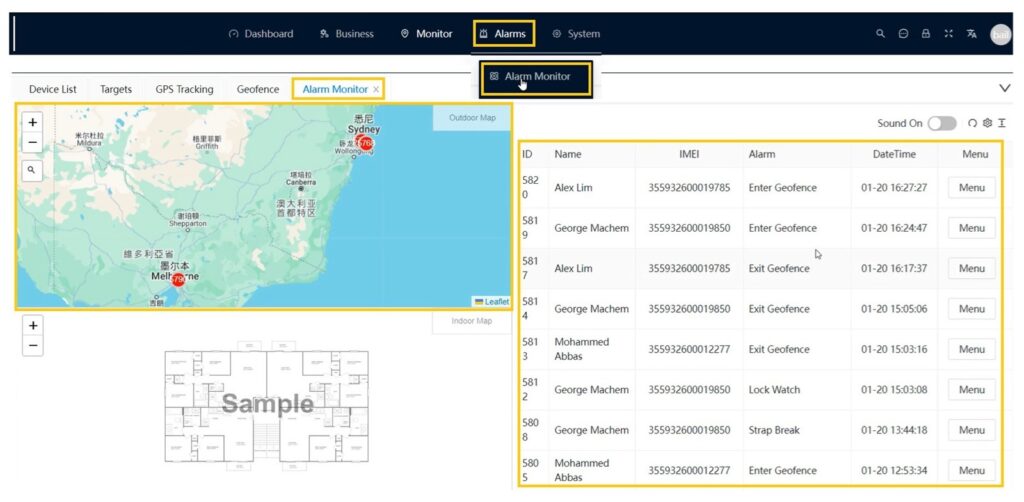
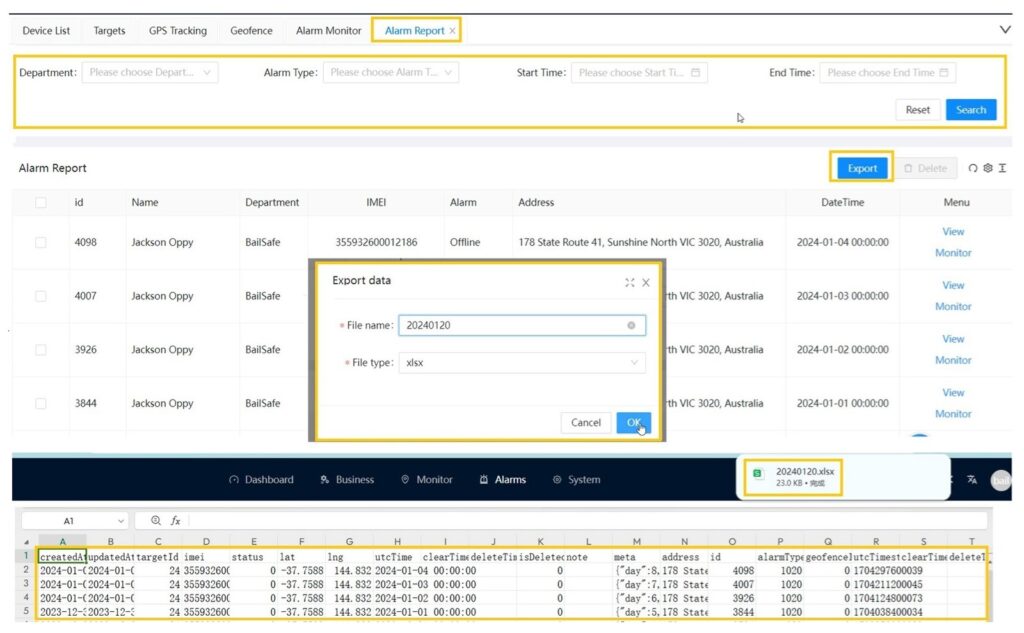
The management and display of alarms related to care targets include two main pages. The first page is the Alarm Monitor, which displays real-time alarms generated. It is primarily used by the staff in the monitoring center to promptly view and handle alarms as needed. The second page is the Alarm Report, which contains all historical alarms. It allows users, mainly administrators, to search and export results based on specific criteria.
- Alarm Monitor:
To access the corresponding menu in English, click on “Alarms” -> “Alarm Monitor”
The Alarm Monitor displays a real-time alarm list on the right side. The sound switch can be turned on so that when a new alarm is generated, the system will play a sound to alert the on-duty staff. On the left side of the Alarm Monitor, there is a map that can simultaneously display both outdoor and indoor maps. This allows the management personnel to quickly locate the precise position where the alarm occurred. By selecting a specific alarm and clicking on the menu, options such as deleting the alarm or viewing the alarm details can be chosen.
Clicking on “View” opens the alarm details page, where you can see more detailed information about the alarm. This includes the detailed information of the care target, alarm details, outdoor and indoor locations where the alarm occurred, and the people who have been notified about the alarm. If necessary, you can click on “Resend Notification” to resend the notification, or click on the “Send Message” button in the top-left corner to send text, voice, or image messages to the care target.
Additionally, if the management personnel have already taken action on this alarm, they can fill in a note on the right side of the page or upload images to provide an explanation of the actions taken.
- Alarm Report
To access the corresponding menu in English, click on “Alarms” -> “Alarm Report”
On this page, management personnel can export the alarm report based on search criteria.
Notification Plan Manage
- Function Introduction:
We have implemented a notification plan feature that allows specified individuals to be notified via email or SMS when certain alarms are generated by care targets. The notification schedule can be customized based on alarm types, specific time periods, or selected care targets, providing flexibility in its configuration.
To access the corresponding menu in English, click on “Alarms” -> “Notification”
- Add Notification Plan
On the notification plan list page, click on “Add” to open the page for adding a new notification plan.
- Edit Notification plan
On the notification plan list page, select a notification plan and click on “Edit” to open the page for editing the notification plan information.
- Delete Notification Plan
On the notification plan list page, select a notification plan and click on “Delete”. Confirm the deletion to remove the notification plan.
For more details pls find the User manual of Traxbean system.
Thinkrace also provides comprehensive development services to help you develop exclusive location management systems and wearable hardwares using AI.Contact us for cutting-edge technology and AI development guidance.
If you wish to purchase a sample to test this feature, you can visit Amazon or mail to info@thinkrace.com
Please log in to the test account to view the demonstration of the Traxbean positioning system and hardware products.
Link:https://traxbean.5gcity.com/
Account:Demouser
Password:123456